CLI Tool
The DevTools CLI (devtools) enables headless API test execution from the command line, making it perfect for CI/CD pipelines, automated testing, and local development workflows.
Installation
Quick Install (macOS/Linux)
curl -fsSL https://sh.dev.tools/install.sh | bashOr with wget:
wget -qO- https://sh.dev.tools/install.sh | bashThe installer will:
- Detect your platform automatically
- Download the latest binary
- Install to
/usr/local/bin(customizable) - Add to your PATH
Custom Install Directory
INSTALL_DIR=/opt/devtools curl -fsSL https://sh.dev.tools/install.sh | bashThen add to PATH:
export PATH="/opt/devtools:$PATH"Manual Installation
Download the binary for your platform from the releases page (opens in a new tab):
- macOS:
devtools-darwin-amd64ordevtools-darwin-arm64 - Linux:
devtools-linux-amd64ordevtools-linux-arm64 - Windows:
devtools-windows-amd64.exe
Make it executable (macOS/Linux):
chmod +x devtools-*
sudo mv devtools-* /usr/local/bin/devtools
Verify Installation
devtools version
# Output: DevToolsCLI v0.5.1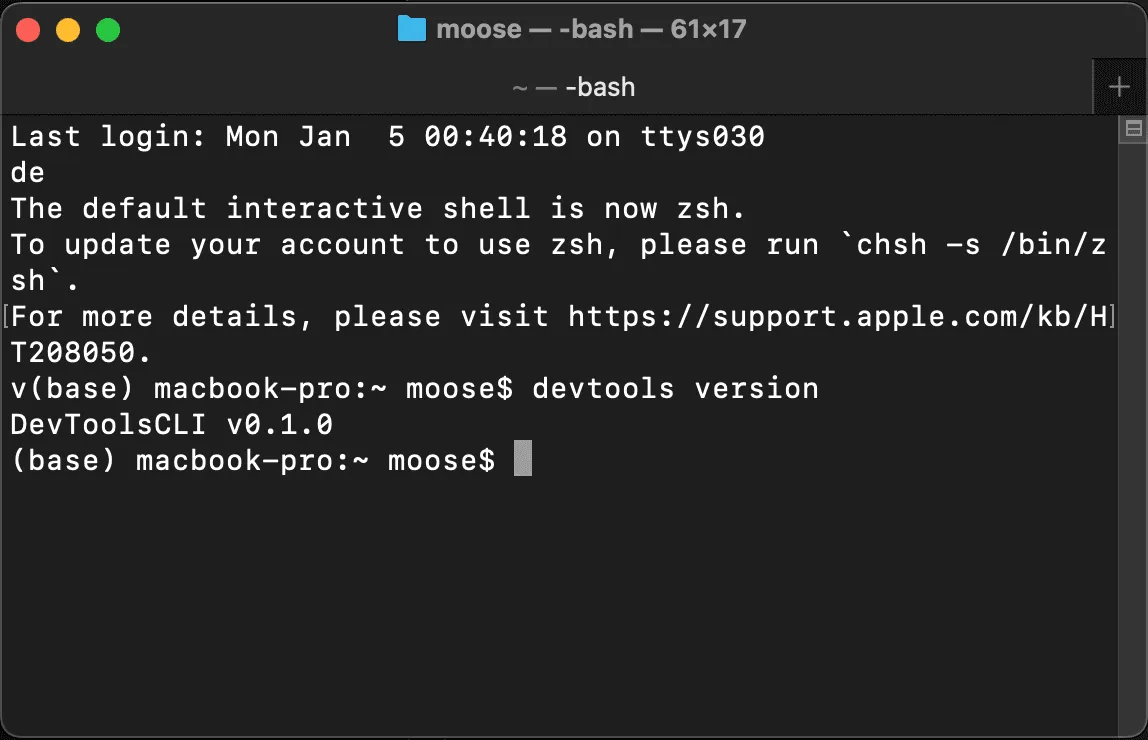
Commands
The CLI has two main command groups: flow and version.
Flow Commands
Execute API test flows from YAML files.
Basic Usage
devtools flow run <yamlflow-file> [flow-name]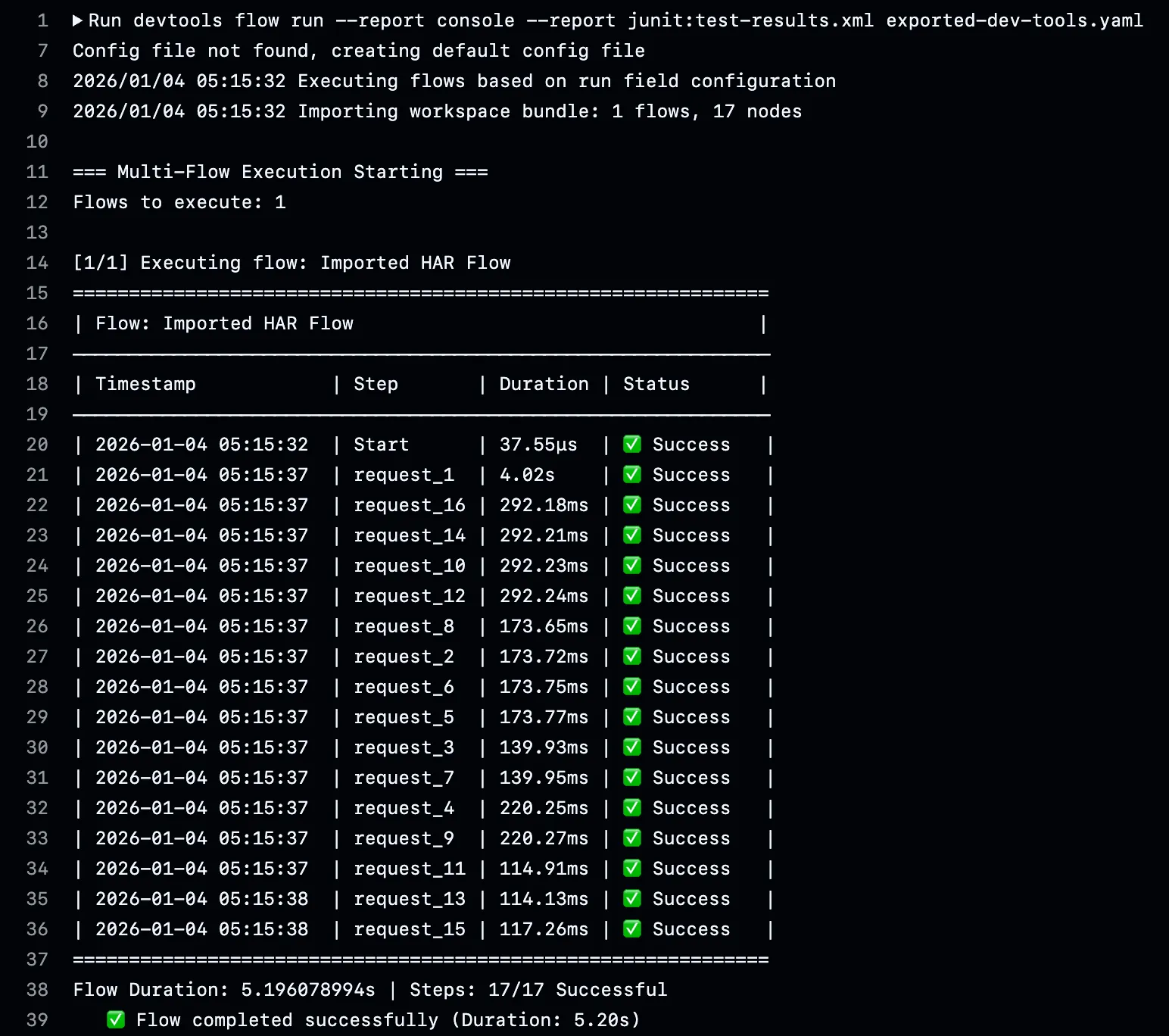
Arguments:
<yamlflow-file>: Path to YAML workflow file (required)[flow-name]: Specific flow to run (optional)
Examples:
# Run all flows in the file
devtools flow run workspace.yaml

# Run a specific flow
devtools flow run workspace.yaml LoginFlow

# Run with relative path
devtools flow run ./tests/api-tests.yaml UserFlow
Options
Report Formats:
# Console output (default)
devtools flow run tests.yaml

# JSON report (for programmatic parsing)
devtools flow run tests.yaml --report json:results.json

# JUnit XML (for CI systems)
devtools flow run tests.yaml --report junit:results.xml

# Multiple reports
devtools flow run tests.yaml \
  --report console \
  --report json:results.json \
  --report junit:results.xml
Quiet Mode:
# Suppress non-essential output
devtools flow run tests.yaml --quiet
devtools flow run tests.yaml -q
Quiet mode:
- Removes console reporter output
- Shows only errors and warnings
- Useful for CI/CD where you only care about exit codes
Exit Codes
The CLI uses standard exit codes:
- 0: All flows succeeded
- 1: One or more flows failed
- 2: Configuration or setup error
Use in scripts:
if devtools flow run tests.yaml; then
  echo "Tests passed!"
else
  echo "Tests failed!" >&2
  exit 1
fi
Version Command
devtools version
# Output: DevToolsCLI v0.5.1
YAML Flow Format
The CLI executes flows defined in YAML format. This enables version control, code review, and CI/CD integration.
Basic Structure
workspace_name: API Test Suite

# Define workspace-level variables
env:
  BASE_URL: https://api.example.com
  API_KEY: your-api-key

# Define which flows to run and in what order
run:
  - flow: AuthFlow
  - flow: UserFlow
    depends_on: AuthFlow

# Define the flows
flows:
  - name: AuthFlow
    variables:
      - name: email
        value: test@example.com
    steps:
      - request:
          name: Login
          method: POST
          url: '{{BASE_URL}}/auth/login'
          headers:
            Content-Type: application/json
          body:
            email: '{{email}}'
            password: secret123

  - name: UserFlow
    steps:
      - request:
          name: GetProfile
          method: GET
          url: '{{BASE_URL}}/profile'
          headers:
            Authorization: Bearer {{Login.response.body.token}}
Complete Example
See Examples & Best Practices for full examples.
Environment Variables
The CLI reads environment variables from the OS, enabling secure secret management:
Using Environment Variables
In your YAML:
env:
  API_KEY: '#env:SECRET_API_KEY'
  DB_PASSWORD: '#env:DB_PASSWORD'
  BASE_URL: '#env:API_BASE_URL'
Run with environment variables:
# Set inline
API_BASE_URL=https://api.example.com \
SECRET_API_KEY=sk_live_abc123 \
devtools flow run tests.yaml

# From shell environment
export SECRET_API_KEY=sk_live_abc123
export DB_PASSWORD=mypassword
devtools flow run tests.yaml

# Load from .env file (using direnv or similar)
devtools flow run tests.yaml
CI/CD Integration
Perfect for GitHub Actions, GitLab CI, and other CI/CD platforms:
GitHub Actions:
steps:
  - name: Run API Tests
    env:
      SECRET_API_KEY: ${{ secrets.API_KEY }}
      DB_PASSWORD: ${{ secrets.DB_PASSWORD }}
      API_BASE_URL: https://api-staging.example.com
    run: devtools flow run tests.yaml
GitLab CI:
test:
  script:
    - devtools flow run tests.yaml
  variables:
    SECRET_API_KEY: $CI_SECRET_API_KEY
    API_BASE_URL: https://api-staging.example.com
See CI/CD Integration for complete examples.
Output Formats
Console Report (Default)
Displays an ASCII table with execution details:
============================
| Flow: LoginFlow          |
────────────────────────────
| Timestamp | Step         | Duration | Status  |
────────────────────────────
| 10:30:45  | Login        | 234ms    | Success |
| 10:30:46  | GetProfile   | 156ms    | Success |
============================
Flow Duration: 390ms | Steps: 2/2 Successful
Features:
- Real-time progress updates
- Visual status indicators
- Summary statistics
- Human-readable format
JSON Report
Machine-readable format for programmatic analysis:
devtools flow run tests.yaml --report json:results.jsonOutput Structure:
{
  "flowId": "uuid",
  "flowName": "LoginFlow",
  "status": "success",
  "startTime": "2025-01-04T10:30:45Z",
  "duration": 390,
  "nodes": [
    {
      "nodeId": "uuid",
      "nodeName": "Login",
      "state": "success",
      "duration": 234,
      "error": null,
      "iteration": null
    }
  ]
}
Use Cases:
- Parse results in scripts
- Generate custom reports
- Integrate with monitoring systems
- Aggregate test metrics
JUnit XML Report
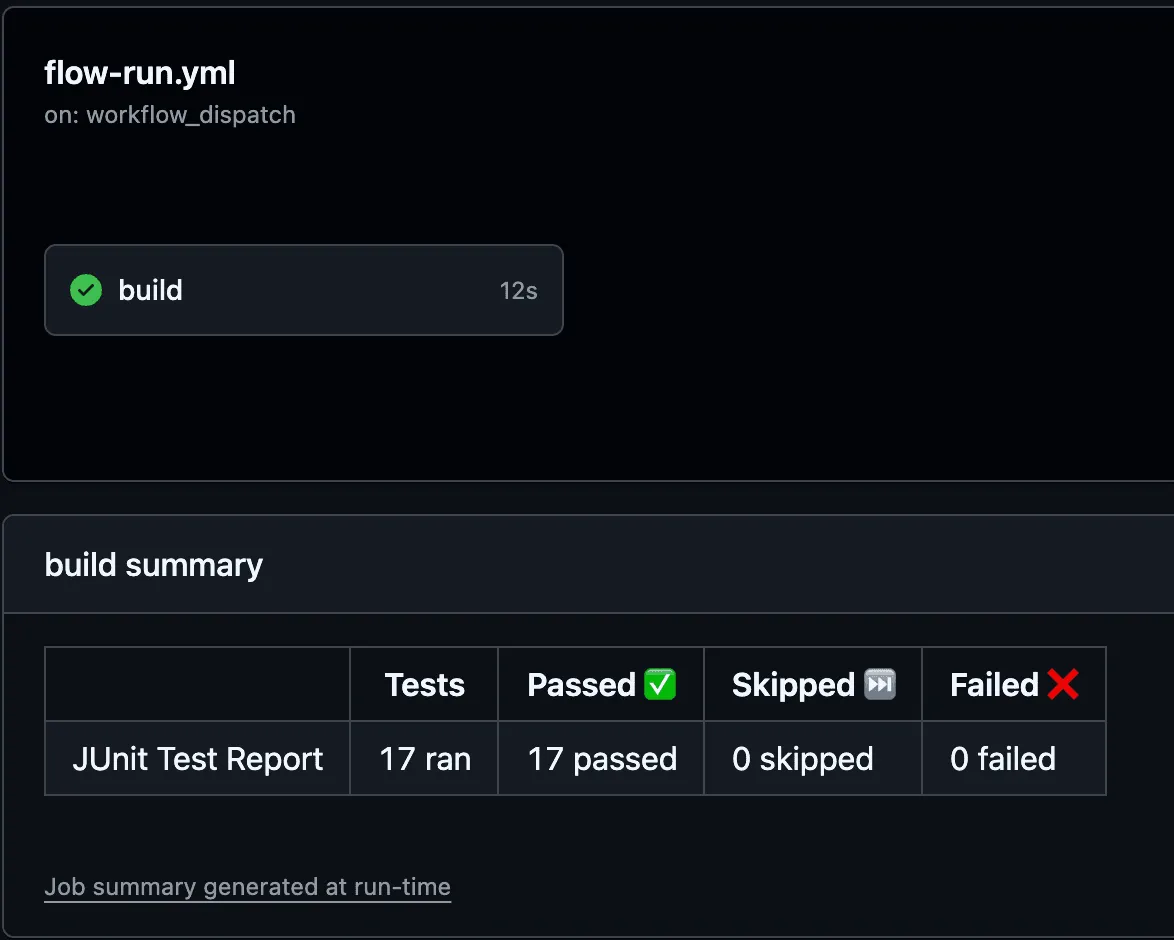
Compatible with CI systems like Jenkins, GitLab CI, GitHub Actions:
devtools flow run tests.yaml --report junit:results.xmlOutput Structure:
<testsuites>
  <testsuite name="LoginFlow" tests="2" failures="0" time="0.390">
    <testcase name="Login" time="0.234" />
    <testcase name="GetProfile" time="0.156" />
  </testsuite>
</testsuites>
CI Integration:
# GitHub Actions
- name: Run Tests
  run: devtools flow run tests.yaml --report junit:results.xml

- name: Publish Test Results
  uses: actions/upload-artifact@v4
  if: always()
  with:
    name: test-results
    path: results.xml
Advanced Usage
Multi-Flow Execution
Run multiple flows in sequence with dependencies:
run:
  - flow: SetupFlow
  - flow: TestFlow
    depends_on: SetupFlow
  - flow: CleanupFlow
    depends_on: TestFlow
Execution order:
- SetupFlow runs first
- TestFlow runs after SetupFlow completes
- CleanupFlow runs after TestFlow completes
Cross-flow dependencies:
Reference nodes from other flows:
run:
  - flow: AuthFlow
  - flow: DataFlow
    depends_on:
      - Login  # Node from AuthFlow
      - AuthFlow  # Or entire flow

flows:
  - name: AuthFlow
    steps:
      - request:
          name: Login
          # ...

  - name: DataFlow
    steps:
      - request:
          name: FetchData
          headers:
            Authorization: Bearer {{Login.response.body.token}}
Request Templates
Define reusable request configurations:
request_templates:
  AuthenticatedGet:
    method: GET
    headers:
      Authorization: Bearer {{Login.response.body.token}}
      Accept: application/json

flows:
  - name: DataFlow
    steps:
      - request:
          name: GetProfile
          use_request: AuthenticatedGet
          url: '{{BASE_URL}}/profile'

      - request:
          name: GetSettings
          use_request: AuthenticatedGet
          url: '{{BASE_URL}}/settings'
Benefits:
- DRY (Don't Repeat Yourself)
- Consistency across requests
- Easy updates (change template, not every request)
JavaScript Nodes
Run custom logic for data transformation:
- js:
    name: ProcessData
    code: |
      export default function(context) {
        const users = context.GetUsers?.response?.body || [];

        // Transform data
        const active = users.filter(u => u.active);

        // Compute statistics
        const avgAge = active.reduce((sum, u) => sum + u.age, 0) / active.length;

        console.log(`Found ${active.length} active users`);

        return {
          activeCount: active.length,
          averageAge: avgAge,
          userIds: active.map(u => u.id)
        };
      }
    depends_on: GetUsers
Node.js Worker:
The CLI automatically starts a Node.js worker when JavaScript nodes are detected. No manual setup required!
Loops and Iterations
For Loop:
- for:
    name: FetchUsers
    iter_count: 5
    loop: GetUser

- request:
    name: GetUser
    method: GET
    url: https://api.example.com/users/{{FetchUsers.index}}
For-Each Loop:
- request:
    name: GetUsers
    method: GET
    url: https://api.example.com/users

- for_each:
    name: ProcessUsers
    items: '{{GetUsers.response.body}}'
    loop: UpdateUser

- request:
    name: UpdateUser
    method: PUT
    url: https://api.example.com/users/{{ProcessUsers.item.id}}
    body:
      lastProcessed: '{{$timestamp}}'
Conditional Execution
- request:
    name: CreateUser
    method: POST
    url: '{{BASE_URL}}/users'
    body:
      name: Test User

- if:
    name: CheckCreation
    condition: CreateUser.response.status == 201
    then: LogSuccess
    else: LogFailure

- js:
    name: LogSuccess
    code: |
      export default function(context) {
        console.log("User created successfully!");
        return { success: true };
      }

- js:
    name: LogFailure
    code: |
      export default function(context) {
        console.error("User creation failed");
        return { success: false };
      }
Debugging
Enable Debug Logging
LOG_LEVEL=DEBUG devtools flow run tests.yamlLog Levels:
DEBUG: Verbose output (all details)INFO: Normal outputWARNING: Warnings onlyERROR: Errors only (default)
Common Issues
Flow Not Found
Error: Flow 'FlowName' not found in workspace.yaml
Solution:
- Check flow name spelling (case-sensitive)
- Verify YAML syntax
- Run without flow name to list available flows:
devtools flow run tests.yaml
# Shows: Available flows: FlowA, FlowB, FlowC
Variable Not Resolved
Error: Variable 'BASE_URL' not found
Solution:
- Set environment variable:
BASE_URL=https://api.example.com devtools flow run tests.yaml - Define in YAML
env:section - Check variable name spelling
Node.js Worker Failed
Error: Failed to start JavaScript worker
Solution:
- Ensure Node.js is installed:
node --version - Check JavaScript syntax in
js:nodes - Review worker logs with
LOG_LEVEL=DEBUG
Request Timeout
Error: Request exceeded timeout
Solution:
- Increase timeout variable:
variables: - name: timeout value: '60' # seconds - Check network connectivity
- Verify API endpoint is responsive
Best Practices
1. Version Control YAML Flows
Store flows in Git:
git add tests/*.yaml
git commit -m "Add API test flows"
2. Use Environment Variables for Secrets
Never commit secrets:
# ✅ Good - uses environment variable
env:
  API_KEY: '#env:SECRET_API_KEY'

# ❌ Bad - hardcoded secret
env:
  API_KEY: 'sk_live_abc123xyz'
3. Separate Environments
Create separate YAML files or use env vars:
# Development
API_BASE_URL=https://api-dev.example.com devtools flow run tests.yaml

# Staging
API_BASE_URL=https://api-staging.example.com devtools flow run tests.yaml

# Production
API_BASE_URL=https://api.example.com devtools flow run tests.yaml
4. Use JUnit Reports in CI
Always generate JUnit XML for CI systems:
devtools flow run tests.yaml \
  --report junit:results.xml \
  --report console
5. Structure Flows by Feature
Organize flows logically:
tests/
├── auth.yaml           # Authentication flows
├── user-management.yaml # User CRUD operations
├── reporting.yaml       # Report generation
└── smoke-tests.yaml     # Quick health checks

## Related

- CLI reference: /docs/reference/cli/
- Newman alternative (CI): /postman-cli-alternative/
- GitHub Actions template: /templates/github-actions/
6. Add Assertions
Validate responses explicitly:
- request:
    name: GetUser
    method: GET
    url: '{{BASE_URL}}/users/1'
    assertions:
      - response.status == 200
      - response.body.id == 1
      - response.body.email != null
7. Use Descriptive Names
# ✅ Good - descriptive
- request:
    name: CreateNewUserAccount
    # ...

# ❌ Bad - generic
- request:
    name: Request1
    # ...
Next: Learn how to integrate DevTools CLI into your CI/CD Pipeline.