Importing HAR Files and API Collections
DevTools makes it easy to import API requests from various sources, including browser recordings (HAR files) and cURL commands. This guide shows you how to import and work with these formats.
What is a HAR File?
HAR (HTTP Archive) is a JSON-based format that records all HTTP interactions between a browser and a website. It captures:
- Complete request details (URL, method, headers, body)
- Full response data (status, headers, body, timing)
- Cookies and cache information
- Performance timing data
Use Cases:
- Record real user workflows to replay later
- Capture authentication flows
- Document API interactions from existing applications
- Share API examples with your team
Recording HAR Files
Using Chrome DevTools
-
Open Chrome DevTools (F12 or Cmd+Opt+I on Mac)
-
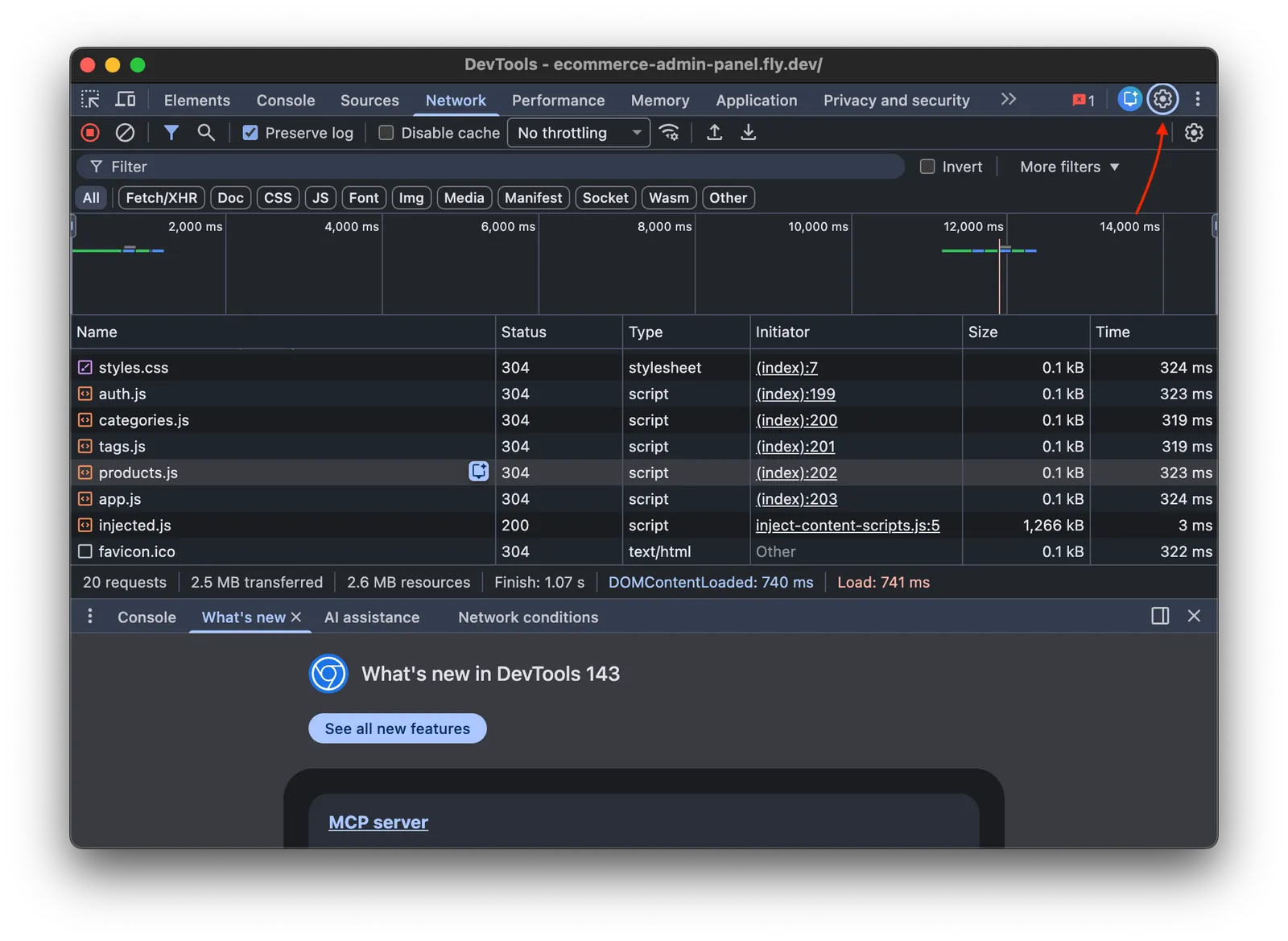
Go to the Network tab
-
Click the gear icon to open settings
-
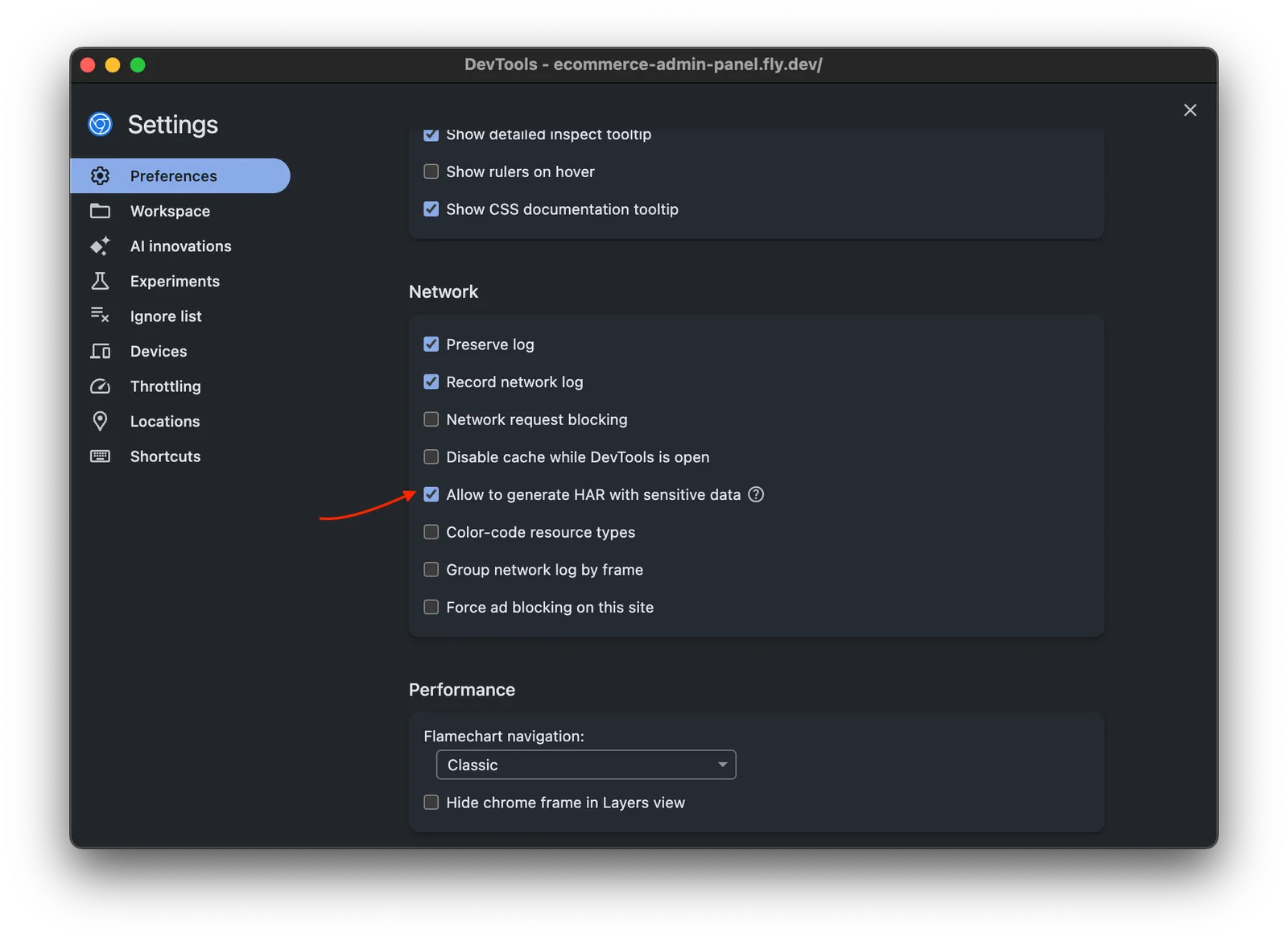
In Preferences → Network, enable Allow to generate HAR with sensitive data
-
Back in the Network tab, check Preserve log to keep requests across page navigations
-
Perform your workflow (login, navigate, submit forms, etc.)
-
Use the download icon → Export HAR (with sensitive data) or right‑click → Save all as HAR with content
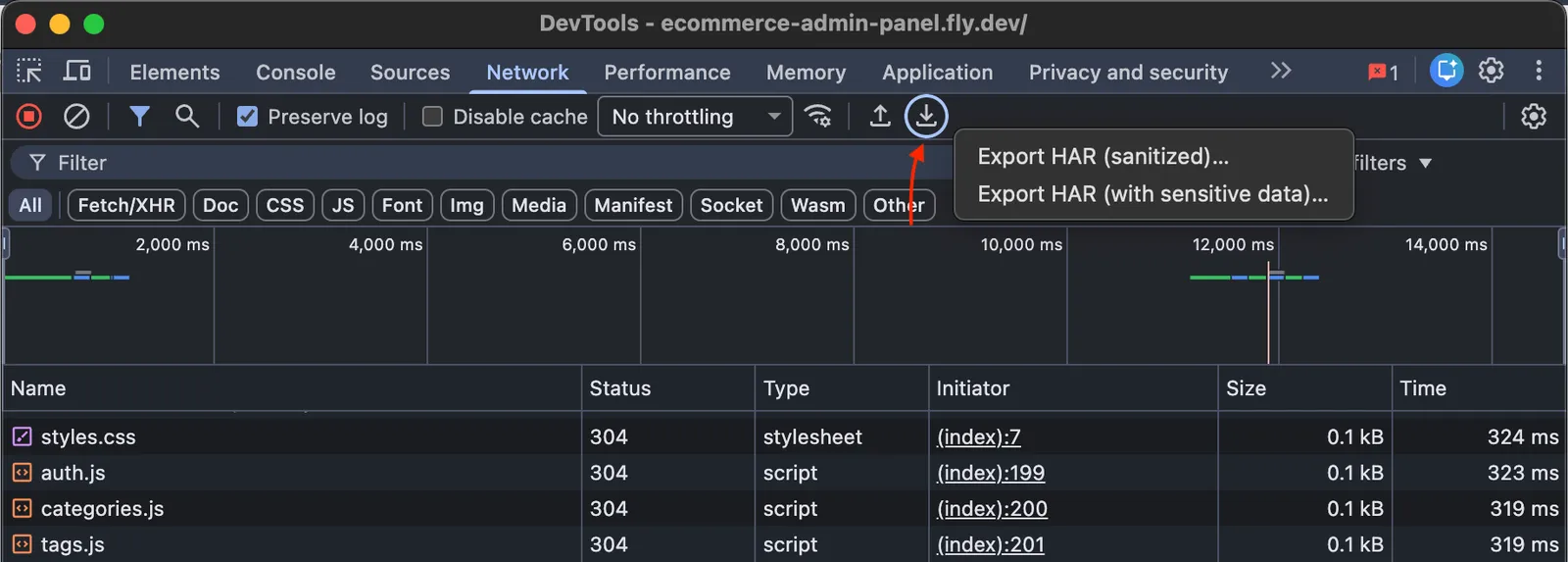
Important: To capture passwords and other sensitive data in HAR files, you must select "Save all as HAR with content" in the Network tab. DevTools stores all data locally on your machine - no data is sent to external servers.
Importing HAR Files
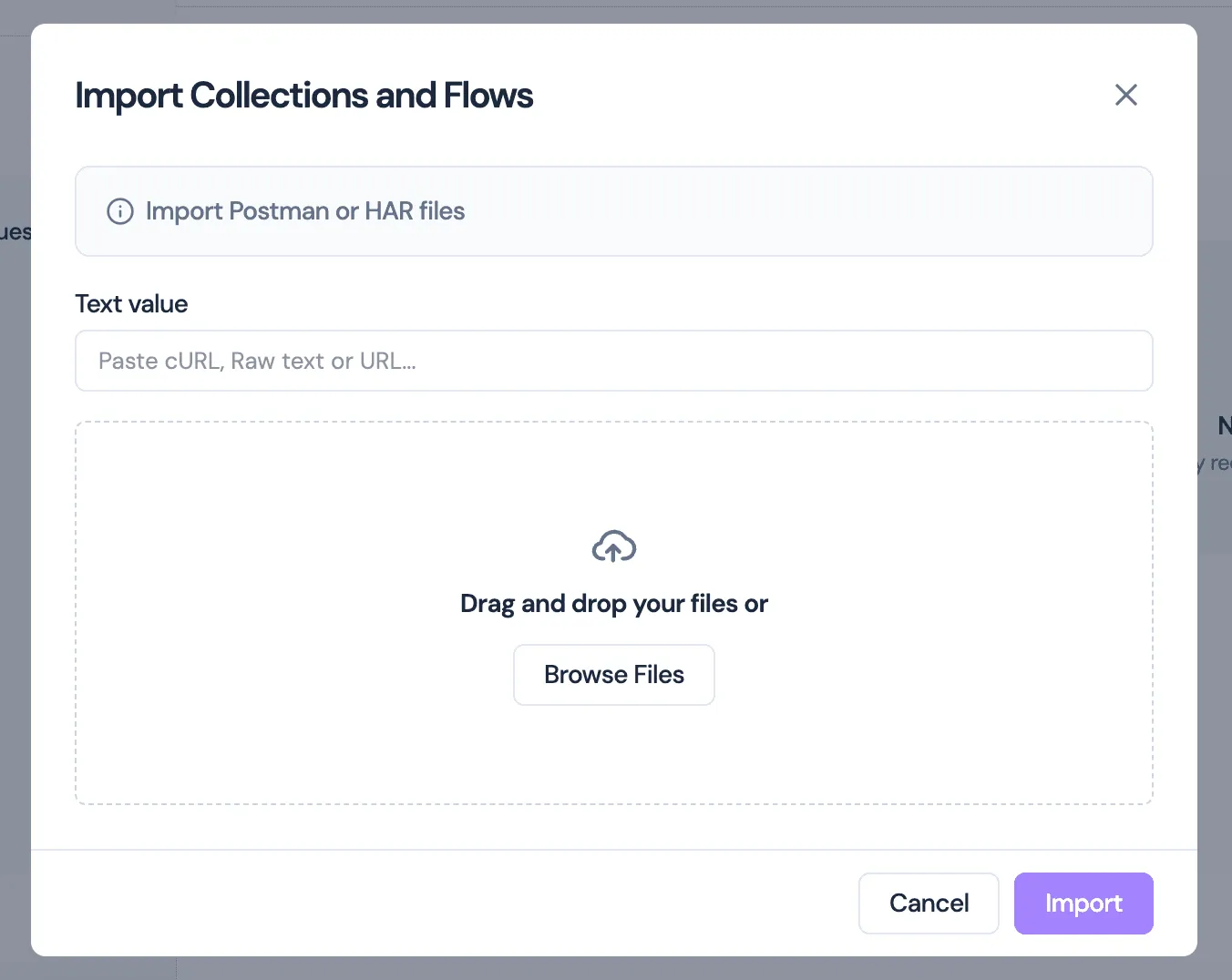
- Open your workspace in DevTools Studio
- Click Import in the toolbar
- Select HAR File as the format
- Choose your
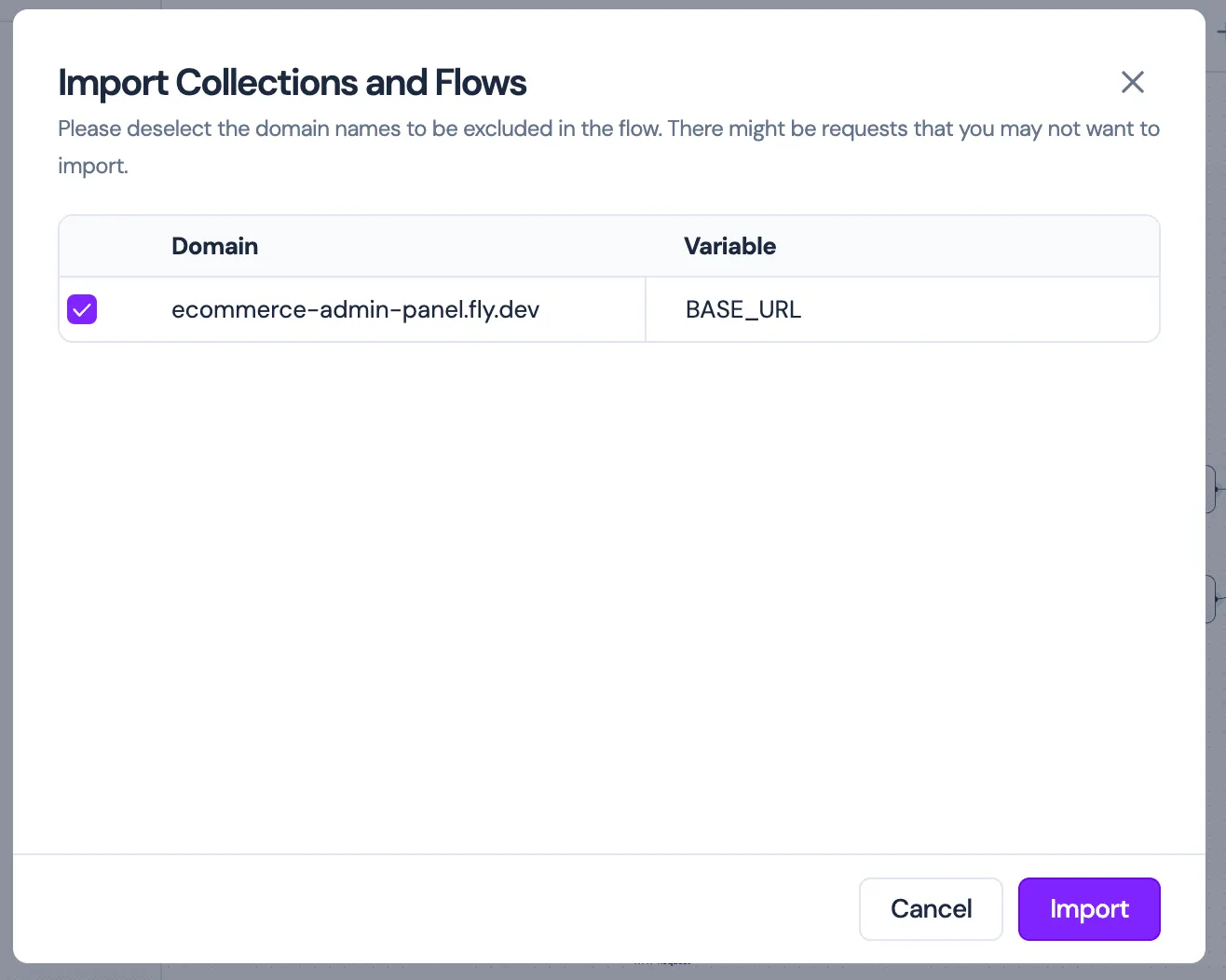
.harfile - (Optional) Filter by domain - uncheck domains you don't want to import
- (Optional) Map domains to environment variables
- Click Import
DevTools will:
- ✅ Extract all HTTP requests
- ✅ Organize them by domain and path
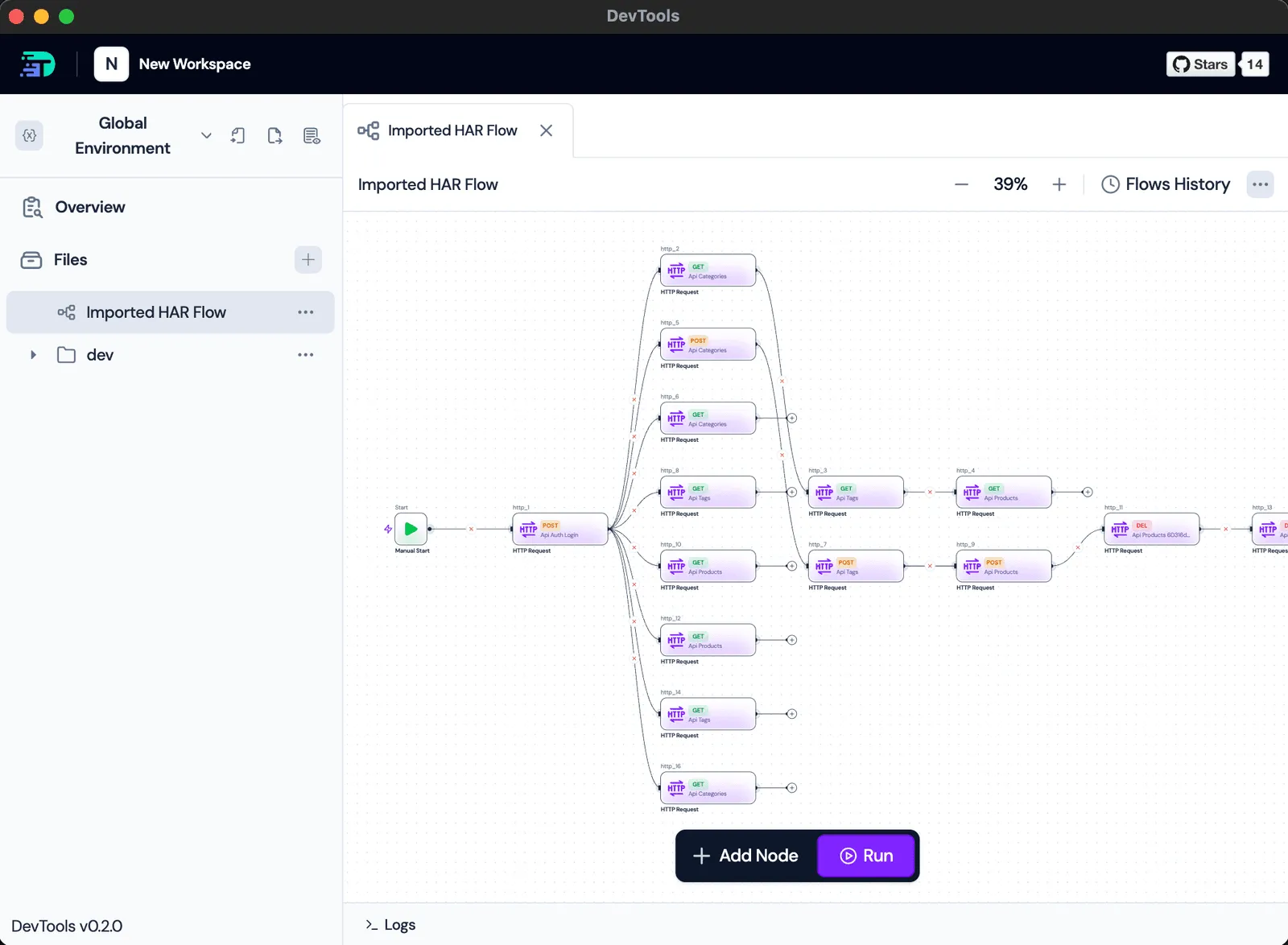
- ✅ Create a visual Flow showing request dependencies
- ✅ Detect data dependencies (responses used in later requests)
- ✅ Generate variable mappings automatically
- ✅ Add response assertions
Import Features
Automatic Dependency Detection
DevTools analyzes your HAR file to detect:
Data Dependencies:
Request 1: POST /api/auth/login
  Response: { "token": "abc123" }

Request 2: GET /api/profile
  Header: Authorization: Bearer abc123
                                 ↑
  DevTools detects this and creates: {{Login.response.body.token}}
Timing Dependencies:
Requests executed within 50ms of each other are automatically linked in the generated Flow.
Mutation Chains:
Sequential POST/PUT/PATCH/DELETE requests are connected to maintain execution order.
Variable Mapping
During import, DevTools can map domain names to variables:
Before:  https://api.staging.example.com/users
After:   {{BASE_URL}}/users

Variable: BASE_URL = https://api.staging.example.com
This makes it easy to:
- Switch between environments (dev, staging, prod)
- Share test collections with teammates
- Run tests against different servers
Flow Generation
Every HAR import creates a visual Flow showing:
- Request sequence - Left-to-right execution order
- Dependencies - Arrows showing data flow between requests
- Parallel requests - Independent requests at the same level
- Assertions - Status code checks based on HAR responses
Example Flow Structure:
[Start] → [Login] → [Get Profile] → [Update Settings]
                    ↓
                     [Get Notifications]
File Organization
Imported requests are organized hierarchically:
Workspace/
└── api.example.com/
    ├── auth/
    │   └── POST login.http
    ├── users/
    │   ├── GET users.http
    │   └── GET user-by-id.http
    └── settings/
        └── PUT update-settings.http
This structure mirrors your API's URL paths for easy navigation.
Supported Import Formats
HAR Files (.har)
Automatic Detection: Looks for log.entries[] structure
Best For:
- Browser recordings
- Complete user workflows
- Performance analysis
Limitations:
- Maximum file size: 50MB
- Only JSON responses are analyzed for variable dependencies
- Very large HAR files (>2000 requests) may skip some optimizations
cURL Commands
Paste or import cURL commands in the Studio app:
Import → cURL → Paste commandSupported cURL flags:
-X/--request- HTTP method-H/--header- Headers-d/--data- Request body-u/--user- Basic auth--url- URL-b/--cookie- Cookies
Domain Filtering
When importing HAR files, you can filter out unwanted domains:
Common Filters:
- Analytics (Google Analytics, Mixpanel)
- Advertising networks
- CDN assets (images, fonts, CSS)
- Third-party scripts
Example:
✅ api.myapp.com
✅ auth.myapp.com
❌ google-analytics.com
❌ cdn.example.com
❌ fonts.googleapis.com
Only checked domains will be imported.
Domain-to-Variable Mapping
Map domain names to environment variables during import:
- Select domains to import
- For each domain, optionally assign a variable name:
api.staging.example.com → BASE_URL auth.staging.example.com → AUTH_URL - DevTools creates environment variables and updates all requests
Result:
Environment: Staging
Variables:
  BASE_URL: https://api.staging.example.com
  AUTH_URL: https://auth.staging.example.com

Environment: Production
Variables:
  BASE_URL: https://api.example.com
  AUTH_URL: https://auth.example.com
Switch environments, and all requests automatically use the new URLs!
Working with Imported Requests
After importing:
1. Review the Generated Flow
Navigate to the Flow tab to see:
- Request execution order
- Data dependencies (arrows between nodes)
- Parallel vs. sequential execution
2. Edit Requests
Click any request to:
- Update URLs, headers, or body
- Add authentication
- Modify assertions
- Add pre-request scripts
Related
- Postman alternative: /postman-alternative/
- Generate a HAR (Chrome): /guides/generate-har-chrome/
- Flows overview: /flows/
3. Configure Variables
Go to Environments to:
- Review auto-detected variables
- Add new environment-specific values
- Enable/disable variables
4. Run the Flow
Execute the entire sequence:
- Click Run Flow
- Watch requests execute in real-time
- Review results and assertions
- Check variable extraction
Export Options
DevTools can export your requests back to multiple formats:
Export to HAR
Right-click collection → Export → HARUse case: Share with browser debugging tools
Export to YAML Flow
Right-click flow → Export → YAMLUse case: Version control, CI/CD (see CLI Tool)
Export to cURL
Right-click request → Export → cURLUse case: Share individual requests for terminal execution
Troubleshooting
Import Failed: Format Not Detected
Solution: Ensure your file is valid JSON and contains the required fields:
- HAR: Must have
log.entries[] - cURL: Must start with
curlcommand
No Dependencies Detected
Possible Causes:
- Responses are not JSON (only JSON is analyzed)
- Variable substitution patterns don't match
- Requests are truly independent
Solution: Manually add dependencies in the Flow editor
Import Too Slow
For large HAR files (>1000 requests):
- Filter by domain before importing
- Split into smaller HAR files
- Import in batches
Variables Not Created
Check:
- Domain mapping was enabled during import
- Variable names are valid (alphanumeric + underscore)
- Environment is selected in workspace
Next: Learn how to create and customize Visual Flows to build complex API test scenarios.