Environments and Variables
Environments and variables are the key to making your API tests reusable across different deployment stages (development, staging, production) and team members. This guide explains DevTools' powerful variable system and how to use it effectively.
What are Environments?
Environments are collections of variables that represent different deployment contexts. Common examples:
- Development - Local or dev server URLs and test credentials
- Staging - Pre-production environment for QA testing
- Production - Live environment for smoke tests
- Local - Localhost URLs for local development
Use Case:
Instead of maintaining separate test collections for each environment, you define variables once and swap environments:
Development:  BASE_URL = https://api-dev.example.com
Staging:      BASE_URL = https://api-staging.example.com
Production:   BASE_URL = https://api.example.com
Your requests use {{BASE_URL}} and automatically adapt to the selected environment.
Variable Types
DevTools supports three levels of variables with a clear priority system:
1. Global Variables
Scope: Available across all workspaces
Use Cases:
- Company-wide API keys
- Shared service URLs
- Common configuration values
Example:
ANALYTICS_API_KEY = abc123
LOGGING_ENDPOINT = https://logs.company.com
2. Environment Variables
Scope: Workspace-specific, tied to an environment
Use Cases:
- Environment-specific URLs (dev, staging, prod)
- Deployment-specific credentials
- Feature flags per environment
Example:
Environment: Development
  BASE_URL = https://api-dev.example.com
  DB_NAME = dev_database
  DEBUG_MODE = true

Environment: Production
  BASE_URL = https://api.example.com
  DB_NAME = prod_database
  DEBUG_MODE = false
3. Flow Variables
Scope: Specific to a single flow execution
Use Cases:
- Test-specific data
- Temporary values
- Flow-level configuration
Example:
flows:
  - name: UserTest
    variables:
      - name: test_user_id
        value: '12345'
      - name: iterations
        value: '10'
Variable Priority
When multiple variables have the same name, DevTools uses this priority order:
Flow Variables (highest priority)
    ↓
Environment Variables
    ↓
Global Variables (lowest priority)
Example:
Global:       API_TIMEOUT = 30
Environment:  API_TIMEOUT = 60
Flow:         API_TIMEOUT = 120

Actual value used: 120 (Flow wins)
This allows you to:
- Set sensible defaults globally
- Override per environment
- Override again per flow for special cases
Managing Environments
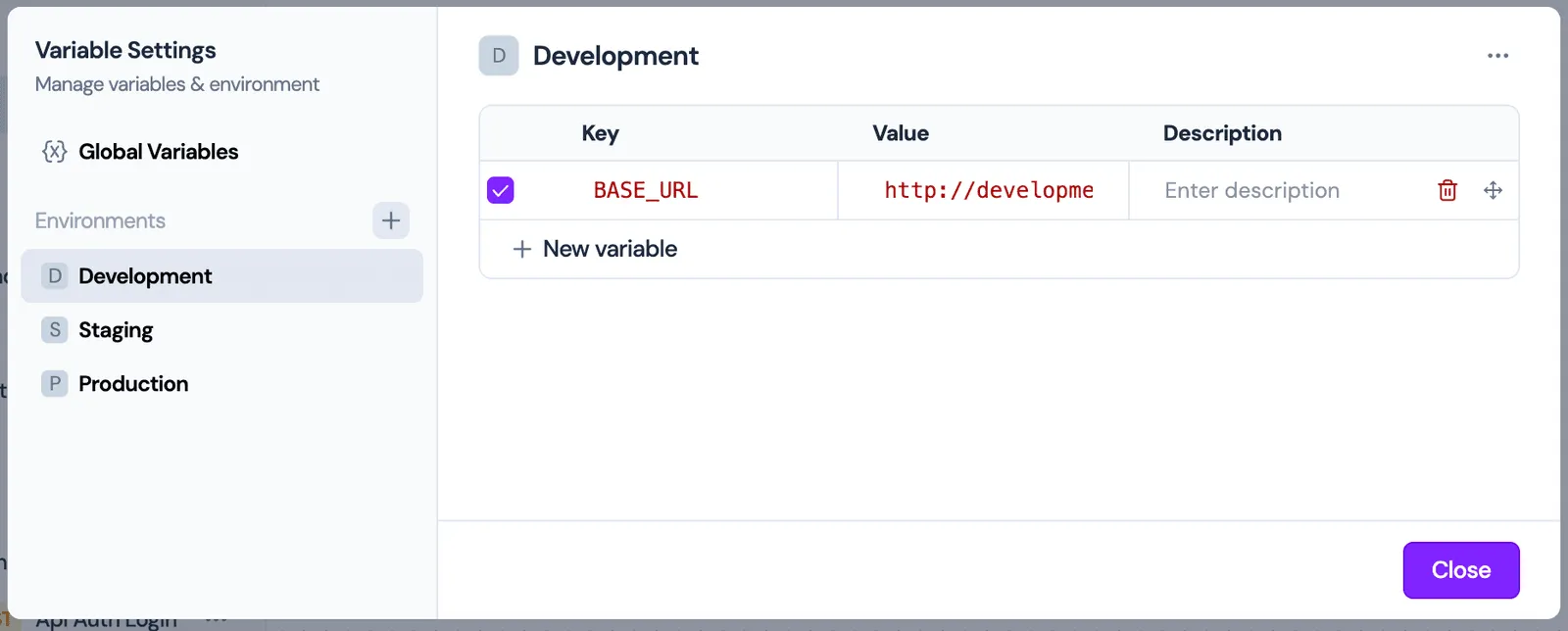
Creating Environments
Studio Application:
- Navigate to Settings → Environments
- Click New Environment
- Enter environment details:
- Name: Development
- Description: Local development environment
- Type: Normal (or Global for workspace-wide)
- Click Create
YAML (for CLI):
env:
  BASE_URL: https://api-dev.example.com
  API_KEY: dev-api-key-123
  TIMEOUT: '30'
Switching Environments
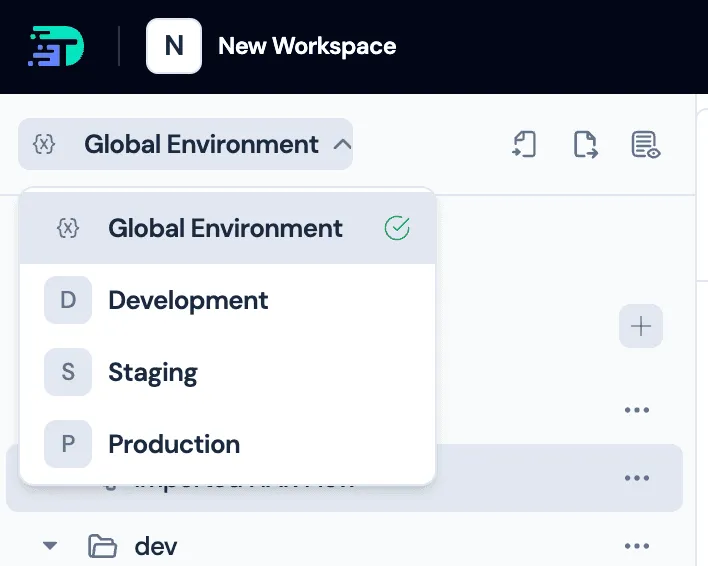
Studio:
Click the environment dropdown in the toolbar and select your target environment. All subsequent requests will use variables from that environment.
CLI:
Environment variables are embedded in the YAML flow file or read from OS environment variables (see Special Variables).
Reordering Environments
Drag and drop environments in the Settings panel to change their display order.
Managing Variables
Adding Variables
Studio:
- Select an environment
- Click Add Variable
- Enter variable details:
- Key: Variable name (e.g.,
BASE_URL) - Value: Variable value (e.g.,
https://api.example.com) - Description: Optional notes
- Enabled: Toggle to enable/disable
- Key: Variable name (e.g.,
YAML:
flows:
  - name: MyFlow
    variables:
      - name: user_email
        value: test@example.com
        enabled: true
        description: Test user email address
Variable Naming Rules
- Alphanumeric + underscores:
user_id,BASE_URL,API_KEY_V2 - Case-sensitive:
userIdandUserIdare different - No spaces: Use underscores instead
- Descriptive:
BASE_URLis better thanURL1
Enabling/Disabling Variables
Toggle the Enabled checkbox to temporarily disable a variable without deleting it.
Use Cases:
- Testing with/without authentication
- Conditional feature flags
- A/B testing different values
Disabled variables are ignored during execution.
Variable Descriptions
Add descriptions to document:
- Variable purpose
- Expected format
- Where to find the value
- Security notes
Example:
Key:         ADMIN_TOKEN
Value:       sk_live_abc123...
Description: Production admin API token. Rotate monthly. Get from vault.
Using Variables
Variable Syntax
Reference variables using double curly braces:
{{VARIABLE_NAME}}Variables can be used in:
- URLs
- Headers
- Query parameters
- Request body
- Assertions
- JavaScript code
In URLs
{{BASE_URL}}/api/v1/users/{{user_id}}Result with variables:
BASE_URL = https://api.example.com
user_id = 42

Final URL: https://api.example.com/api/v1/users/42
In Headers
headers:
  Authorization: Bearer {{ACCESS_TOKEN}}
  X-API-Key: '{{API_KEY}}'
  X-Request-ID: '{{ uuid() }}' #uuid v4
In Query Parameters
query_params:
  userId: '{{user_id}}'
  limit: '{{page_size}}'
  filter: '{{search_term}}'
In Request Body
{
  "email": "{{user_email}}",
  "password": "{{user_password}}",
  "role": "{{user_role}}"
}
In Assertions
response.status == {{expected_status}}
response.body.userId == {{user_id}}
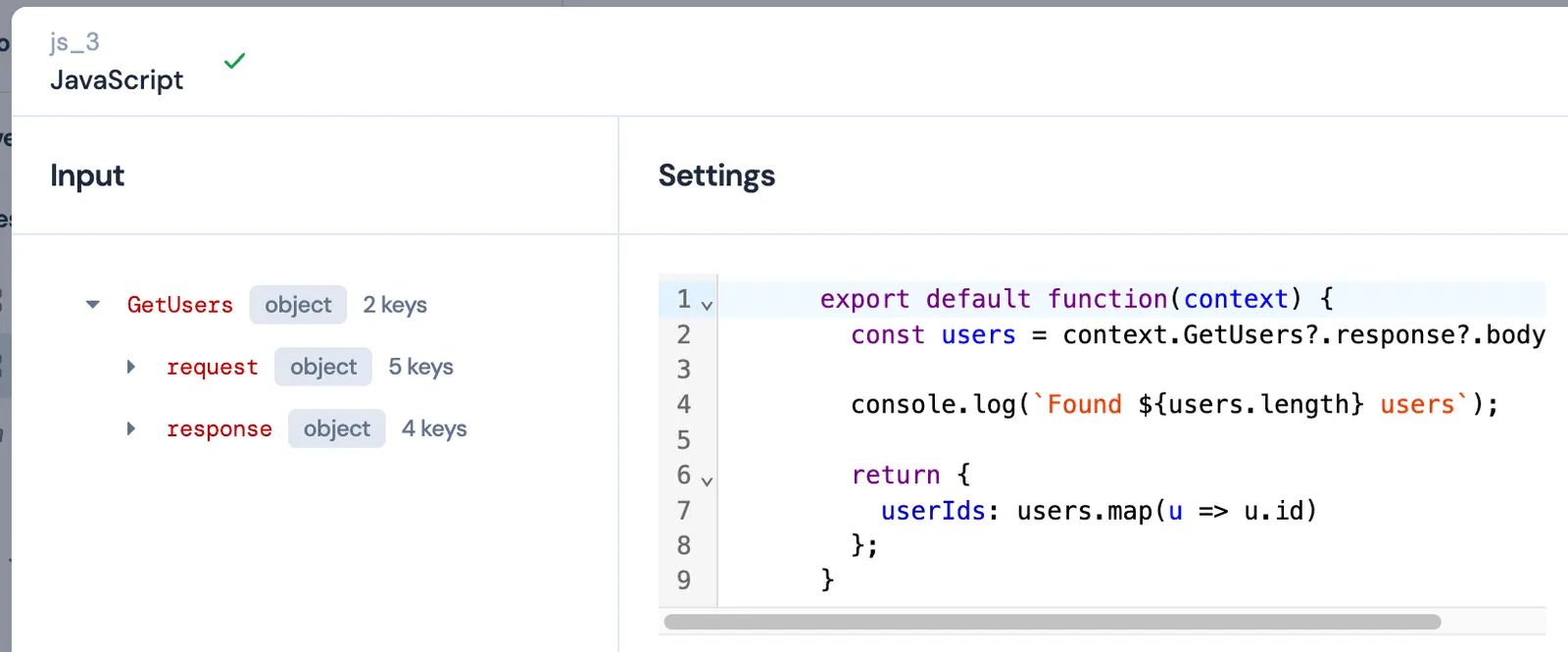
In JavaScript Nodes
export default function(context) {
  const baseUrl = context.BASE_URL;
  const userId = context.user_id;

  console.log(`Fetching user ${userId} from ${baseUrl}`);

  return {
    fullUrl: `${baseUrl}/users/${userId}`
  };
}
Node Output Variables
Every node automatically creates output variables based on its execution results.
HTTP Request Nodes
Output Structure:
{
  request: {
    method: string,
    url: string,
    headers: { [key: string]: string },
    queries: { [key: string]: string },
    body: any
  },
  response: {
    status: number,
    body: any,
    headers: { [key: string]: string },
    duration: number  // milliseconds
  }
}
Accessing Values:
{{NodeName.response.status}}
{{NodeName.response.body.token}}
{{NodeName.response.headers.Content-Type}}
{{NodeName.request.url}}
{{NodeName.response.duration}}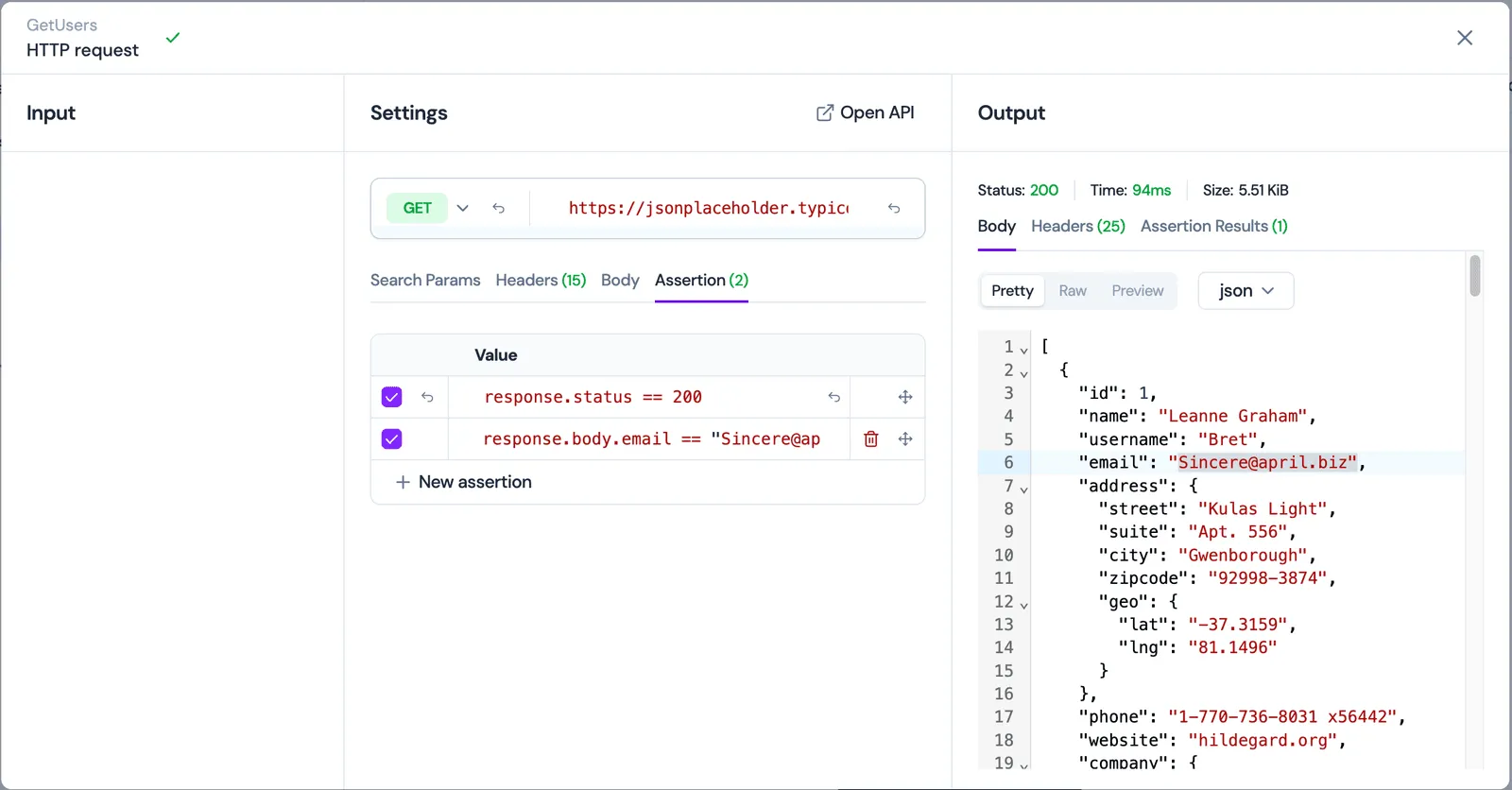
Nested Access:
For deeply nested JSON responses:
{
  "data": {
    "user": {
      "profile": {
        "email": "user@example.com"
      }
    }
  }
}
Access with:
{{GetUser.response.body.data.user.profile.email}}JavaScript Nodes
Output Structure:
Whatever your JavaScript function returns becomes the output:
export default function(context) {
  return {
    processedCount: 10,
    status: "complete",
    userIds: [1, 2, 3]
  };
}
Access:
{{ProcessData.processedCount}}
{{ProcessData.status}}
{{ProcessData.userIds}}
Loop Nodes
For Loop:
{{LoopName.index}}        // Current iteration (0-based)
{{LoopName.iter_count}}   // Total iterations
For-Each Loop:
{{ForEachName.item}}      // Current item
{{ForEachName.index}}     // Current index
Special Variables
DevTools provides special variable types for dynamic values:
File References
Read file contents at execution time:
variables:
  - name: request_body
    value: '#file:/path/to/data.json'
Syntax: #file:/absolute/path/to/file
Use Cases:
- Large JSON payloads
- Binary file uploads
- Shared test data files
- Separation of data from flow logic
Environment References
Read from OS environment variables:
variables:
  - name: API_SECRET
    value: '{{#env:SECRET_API_KEY}}'
Syntax: {{#env:ENV_VAR_NAME}}
Use Cases:
- Secrets in CI/CD (GitHub Actions, GitLab CI)
- Local developer-specific config
- System-level credentials
- Dynamic CI/CD values
Example in GitHub Actions:
# .github/workflows/test.yml
steps:
  - name: Run API Tests
    env:
      SECRET_API_KEY: ${{ secrets.API_KEY }}
      DB_PASSWORD: ${{ secrets.DB_PASSWORD }}
    run: devtools flow run tests.yaml
Flow file:
env:
  API_KEY: '{{#env:SECRET_API_KEY}}'
  DB_PASS: '{{#env:DB_PASSWORD}}'
Built-in Functions
DevTools supports several built-in variable functions:
{{ uuid() }}              # Generate UUID v4
{{ uuid("v4") }}          # Generate UUID v4
{{ uuid("v7") }}          # Generate UUID v7
{{ now() }}               # Current ISO 8601 datetime
{{ now().Unix() }}        # Current Unix timestamp (seconds)
{{ now().UnixMilli() }}   # Current Unix timestamp (milliseconds)
{{ now().UnixMicro() }}   # Current Unix timestamp (microseconds)
{{ now().UnixNano() }}    # Current Unix timestamp (nanoseconds)
Example:
headers:
  X-Request-ID: '{{ uuid() }}'
  X-Timestamp: '{{ now().Unix() }}'

body:
  requestId: '{{ uuid() }}'
  createdAt: '{{ now() }}'
Variable Mapping System
Why Variable Mapping is Powerful
DevTools' variable mapping system enables:
- Automatic Dependency Detection - Extracts values from responses and injects into subsequent requests
- Cross-Request Data Flow - Pass tokens, IDs, and data between API calls
- Environment Portability - Switch environments without changing request definitions
- Version Control Friendly - Variables separate configuration from logic
Automatic Variable Extraction
When importing HAR files, DevTools automatically:
- Analyzes response bodies (JSON only)
- Identifies reused values in later requests
- Creates variable references automatically
- Maps domains to variables for environment switching
Example:
Step 1: POST /auth/login
Response: { "token": "abc123xyz" }

Step 2: GET /profile
Header: Authorization: Bearer abc123xyz
                                ↓
DevTools converts to: Bearer {{Login.response.body.token}}
Manual Variable Mapping
You can manually create variable mappings:
Studio:
- Select text in a request (URL, header, body)
- Right-click → Extract to Variable
- Choose variable source:
- New environment variable
- Existing variable
- Node output reference
YAML:
Use the {{variable}} syntax anywhere:
- request:
    name: CreateUser
    method: POST
    url: '{{BASE_URL}}/users'
    body:
      name: '{{new_user_name}}'

- request:
    name: GetCreatedUser
    method: GET
    url: '{{BASE_URL}}/users/{{CreateUser.response.body.id}}'
Variable Tracking
DevTools tracks which variables are actually used during execution:
After running a flow:
- View Used Variables tab
- See which variables were read
- Identify unused variables
- Validate variable resolution
This helps:
- Debug variable issues
- Clean up unused variables
- Understand data flow
Best Practices
1. Use Descriptive Names
❌ var1, var2, temp
✅ user_id, access_token, base_api_url
2. Group Related Variables
Use naming conventions:
AUTH_TOKEN
AUTH_REFRESH_TOKEN
AUTH_EXPIRY

USER_EMAIL
USER_PASSWORD
USER_ID

API_BASE_URL
API_TIMEOUT
API_RETRY_COUNT
3. Document Sensitive Variables
Add descriptions for secrets:
Key:         PROD_API_KEY
Description: Production API key. DO NOT COMMIT. Rotate quarterly.
4. Use Environments for Deployment Stages
Create environments for each stage:
Development
Staging
Production
Local (for each developer)
5. Prefer Node References Over Manual Variables
Instead of:
# ❌ Manual approach
- request:
    name: Login
    # ... response.body.token = "abc123"

- js:
    name: ExtractToken
    code: |
      return { token: context.Login.response.body.token };

- request:
    name: GetProfile
    headers:
      Authorization: Bearer {{token}}  # Flow variable
Do this:
# ✅ Direct reference
- request:
    name: Login
    # ...

- request:
    name: GetProfile
    headers:
      Authorization: Bearer {{Login.response.body.token}}
6. Validate Variables Before Running
Check that required variables are defined:
// In a JavaScript node
export default function(context) {
  const required = ['BASE_URL', 'API_KEY', 'USER_ID'];
  const missing = required.filter(v => !context[v]);

  if (missing.length > 0) {
    throw new Error(`Missing required variables: ${missing.join(', ')}`);
  }

  return { validated: true };
}
7. Use File References for Large Data
Instead of embedding large JSON in variables:
# ❌ Inline (hard to maintain)
variables:
  - name: test_data
    value: '{"users":[{"id":1,"name":"Alice"},{"id":2,"name":"Bob"},...'

# ✅ File reference (clean and maintainable)
variables:
  - name: test_data
    value: '#file:./test-data/users.json'
8. Never Commit Secrets
Use environment references in version control:
# ✅ Safe to commit
env:
  API_KEY: '{{#env:SECRET_API_KEY}}'
  DB_PASSWORD: '{{#env:DB_PASSWORD}}'

# ❌ NEVER do this
env:
  API_KEY: 'sk_live_abc123xyz456'
  DB_PASSWORD: 'MySecretPassword123!'
Troubleshooting
Variable Not Found
Error: Variable 'user_id' not found
Check:
- Variable is defined in the current environment
- Variable is enabled (not disabled)
- Spelling and case match exactly
- Environment is selected in workspace
Variable Not Resolved
Error: URL contains {{BASE_URL}} literally
Possible Causes:
- Variable value is empty/undefined
- Syntax error (missing
{or}) - Variable defined in wrong scope
Solution: Check variable value and syntax
Node Output Not Available
Error: Cannot read property 'response' of undefined
Check:
- Node has executed (check execution order)
- Node completed successfully (not failed)
- Node name spelling matches
- Path to value is correct (check response structure)
Use optional chaining:
// ❌ Crashes if Login failed
const token = context.Login.response.body.token;

// ✅ Safe - returns undefined if missing
const token = context.Login?.response?.body?.token;
Environment Variable Not Loading
Error: {{#env:SECRET_KEY}} resolves to empty string
Check:
- Environment variable is set in the shell/CI
- Variable name matches exactly (case-sensitive)
- Running in correct environment (CI vs local)
Debug:
# Check if variable is set
echo $SECRET_KEY

# Run with explicit variable
SECRET_KEY=myvalue devtools flow run test.yaml
Next: Learn how to use the CLI Tool to run flows from the command line and integrate with CI/CD pipelines.